
eSERS Information
Access eSERS Employer Tools
eSERS is SERS’ secure online system for employers. It provides an efficient, time-saving way to submit, manage, and review critical employee and financial information.
Use the resources below to get started, troubleshoot issues, and make the most of eSERS.
Access eSERS to manage enrollment, reporting, payments, and more for your district.
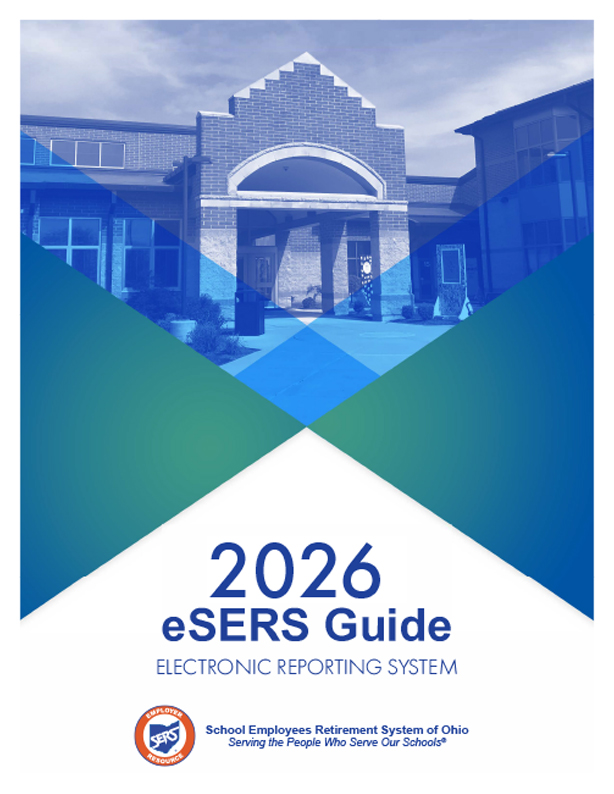
eSERS Guide
The complete eSERS Guide is available as a full document or by individual section below.
-
eSERS Guide (Complete)
-
Section 1: Table of Contents
-
Section 2: Registration
-
Section 3: Web User Maintenance
-
Section 4: Contractor Maintenance
-
Section 5: eSERS Home Page
-
Section 6: Payroll Schedule
-
Section 7: Enrollment
-
Section 8: Contribution Reporting
-
Section 9: Adjustments
-
Section 10: Employer Reporting Detail Lookup
-
Section 11: Bank Account Maintenance
-
Section 12: Payment Remittance
-
Section 13: SCP Payroll Deduction
-
Section 14: Wage Certifications
-
Section 15: Annual Processes
-
Section 16: Additional Submissions
-
Section 17: Informational
-
Member Enrollment and File Upload Guide
-
Electronic Contribution File Definition
-
Electronic ARP Reporting File Definition
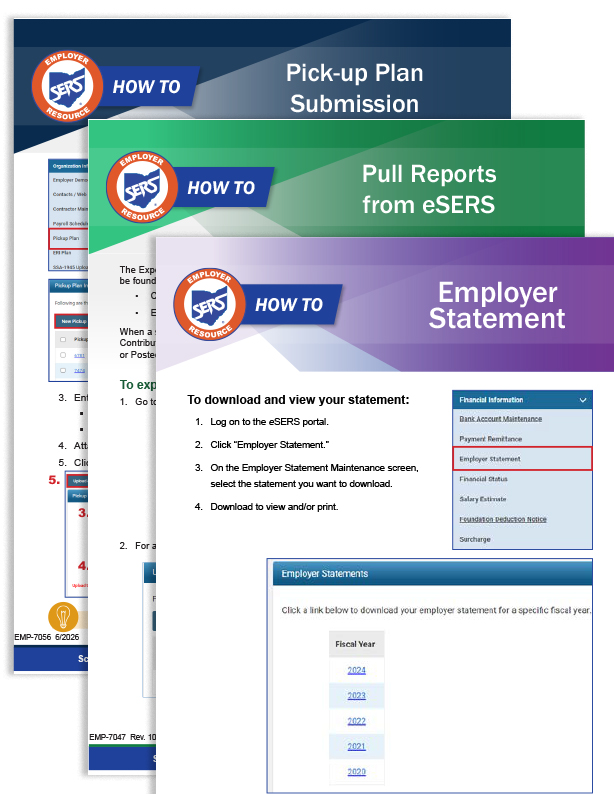
How-To Handouts
Step-by-step instructions for completing common tasks in eSERS. Each guide covers a specific function to help you work efficiently.
-
How To: Adjust Days and Hours
-
How To: Apply Credit Memos
-
How To: Contribution Copy Forward
-
How To: Create Adjustments
-
How To: Create a Special Pay
-
How To: Earning Codes for Contribution Reporting
-
How To: Employer Statement
-
How To: eSERS Registration and Login
-
How To: Extend a Payroll Schedule
-
How To: Manage Payroll Schedules for a Three-Week Pay Period
-
How To: Pick-Up Plan Submission
-
How To: Pull Reports from eSERS
-
How To: Resolve Common Contribution File Errors
-
How To: Submit a Zero File for a Contribution
Additional Resources
Access Issues and Troubleshooting
Some users have reported issues accessing eSERS. Once logged in, users see a mostly blank screen and the eSERS applications on the left side of the screen. When attempting to access the applications, they are logged out of eSERS.
If you experience this issue, you will need to clear the cache from your browser.
Use these step-by-step instructions to clear cache from Google Chrome.
Contact Us
If you have questions about eSERS or need technical assistance, contact Employer Services at 877-213-0861.